
If you’re a Mac user who regularly works with PDF documents, you’ve likely encountered the frustration of Adobe Acrobat’s steep subscription costs. Adobe’s premium PDF editing software can quickly become an expensive necessity for anyone who needs to fill out forms, add signatures, or make basic edits to PDFs. The good news? You don’t need to drain your wallet to accomplish these tasks. There are powerful alternatives available that let you fill out PDF on your Mac without Adobe and any software installation.
In this comprehensive guide, we’ll explore how to fill out PDFs on your Mac using ScanWritr, a cloud-based document editor that eliminates the need for expensive Adobe subscriptions while providing all the essential PDF editing features you need.

Why you don’t need Adobe Acrobat for PDF editing?
Before diving into the solution, let’s understand why Adobe Acrobat might not be the best choice for your PDF editing needs. Adobe’s subscription model requires an expensive commitment, and the software can be resource-intensive on your Mac. Additionally, many users only need basic PDF functionality—filling out forms, adding signatures, and exporting documents—features that don’t justify the premium price tag.
The reality is that modern cloud-based tools have democratized PDF editing. Today’s web-based solutions offer intuitive interfaces, cross-device compatibility, and zero installation requirements. For Mac users specifically, this means you can edit PDFs directly in your browser without downloading or installing anything, making the process faster and more convenient than ever before.
Introducing ScanWritr: The Adobe alternative for Mac users
ScanWritr is a cloud-based document editor and converter designed specifically for users who need straightforward, reliable PDF editing without the complexity or cost of Adobe Acrobat. Whether you’re filling out tax forms, signing contracts, or editing business documents, ScanWritr provides all the tools you need directly in your web browser.
Key advantages of ScanWritr over Adobe Acrobat
No installation required — Unlike Adobe Acrobat, which requires downloading and installing software on your Mac, ScanWritr runs entirely in your web browser. Simply visit the website, upload your PDF, and start editing immediately. This approach not only saves storage space on your Mac but also ensures you’re always using the latest version without manual updates.
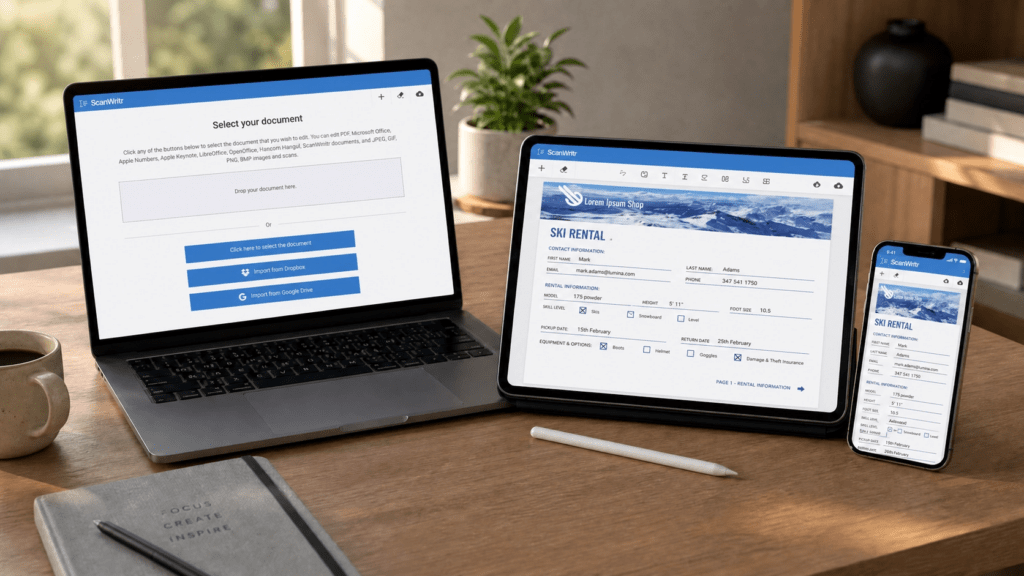
Cross-device compatibility — ScanWritr works seamlessly on your Mac, iPhone, iPad, or any other device with an internet connection. You can store your documents in the cloud, so you can start editing on your MacBook and continue on your iPhone without any hassle. This flexibility is particularly valuable for professionals who work across multiple devices throughout the day.
Comprehensive format support — While Adobe Acrobat focuses primarily on PDF files, ScanWritr supports a wide range of document formats. You can edit PDFs, Microsoft Office documents (Word, Excel, PowerPoint), Apple Pages, Numbers, Keynote, LibreOffice files, and even image files like JPEG, PNG, GIF, and BMP. This versatility means you can handle virtually any document format your work requires.
Affordable pricing — ScanWritr offers flexible pricing options, including a free tier for basic editing and affordable subscription plans for export capabilities. Compare this to Adobe Acrobat’s expensive subscriptions, and the savings become immediately apparent.
Step-by-step guide: How to fill out PDF on Mac without Adobe using ScanWritr
Step 1: Visit ScanWritr online app on your Mac
Open your preferred web browser on your Mac and navigate to www.scanwritr.com/app. You’ll be greeted with a clean, intuitive interface that immediately shows you how to get started. No account creation is required to begin editing—you can start right away.
Step 2: Open your PDF document
You can open a PDF document saved on your Mac, or import one from your preferred cloud storage:
- Upload from your Mac — Click the Click here to select the document button, or drag and drop your file into the Drop your document here area.
- Import from the cloud — Click the Import from Google Drive or Import from Dropbox button.
ScanWritr will automatically process your document and convert it to an editable format. The process is fast, typically completing within seconds depending on your file size and internet connection.
Step 3: Explore the editing toolbar
Once your PDF is loaded, you’ll notice the editing toolbar on the top of the screen. This toolbar contains all the tools you need to fill out your document:
- Text Tool — Add typed text to any part of your PDF. Perfect for filling out form fields with consistent, professional-looking text.
- Markup Tool — Highlight the important sections of your document.
- Eraser Tool — Remove unwanted marks, imperfections, or confidential information from your document.
- Signature Tool — Apply a signature to your document with just a few clicks.
- Image Tool — Insert images, logos, or scanned documents into your PDF.
- Enhancement Tools — Rotate, improve, enhance, and retouch your document.
Step 4: Fill out your PDF on Mac without Adobe
Now comes the main task—filling out your PDF. Here’s how to approach different types of content:
- For text fields — Select the Text tool and click on the area where you need to add information. A text box will appear, and you can type directly into it. You can adjust font size, style, and color to match the existing document format.
- For signature fields — If your document requires a signature, select the Signature tool. ScanWritr allows you to either draw your signature using your mouse, trackpad, or stylus, or upload a pre-made signature image. The signature will be applied to the designated area of your document.
- For checkboxes, selection fields, and annotations — Use the Pen tool to mark checkboxes and to add check marks or selection indicators.
- For highlighting the important sections of your document — If you need to highlight certain text or area, use the Markup tool. You can adjust color and weight.
Step 5: Preview your work
As you edit, ScanWritr displays your changes in real-time. Take advantage of the zoom feature to ensure all your entries are accurate and properly positioned. Navigate through multi-page documents and fill them out.
Step 6: Export your completed PDF
Once you’ve finished filling out your document, it’s time to export it. Click the Download button in the top right corner of the interface. ScanWritr will generate your completed PDF and save it to your Mac’s Downloads folder.
For users with a subscription (even the affordable Export), you can export to multiple formats including PDF and PNG. The platform’s optical character recognition (OCR) functionality exports PDFs, scanned documents, and images into searchable, editable PDFs.
Advanced features that make ScanWritr stand out
Document enhancement and image quality — ScanWritr includes powerful image enhancement tools that automatically improve the quality of documents and images. If you’ve scanned a paper form or received a low-quality PDF, these tools can enhance contrast, reduce shadows, and optimize the image for better readability and professional appearance.
OCR (Optical Character Recognition) — The Pro subscription tier includes OCR functionality, which converts documents and images into searchable, editable text. This is particularly valuable if you’re working with scanned documents or images of printed forms. Instead of manually retyping information, OCR automatically extracts the text, saving you significant time.
Is ScanWritr right for you?
- Business professionals — Fill out contracts, agreements, and business forms without needing expensive Adobe licenses.
- Students and educators — Complete assignment submission forms, fill out educational documents, and annotate PDFs for grading—all without software installation.
- Freelancers and consultants — Manage client contracts, invoices, and proposals. Add signatures and export professional-looking documents in minutes.
- Small business owners — Process tax forms, permits, and regulatory documents.
- Home users — Fill out insurance forms, medical documents, and personal paperwork from the comfort of your home.
Conclusion: Fill out PDF on Mac without Adobe
Filling out PDFs on your Mac no longer requires expensive Adobe Acrobat subscriptions. ScanWritr provides a powerful, user-friendly alternative that combines essential PDF editing features with cross-device compatibility and affordable pricing. Whether you’re a business professional, student, freelancer, or home user, ScanWritr delivers the tools you need to efficiently complete your document tasks.
The platform’s intuitive interface, comprehensive format support, and cloud-based architecture make it an ideal choice for Mac users seeking a practical, cost-effective solution to their PDF editing needs. With flexible pricing options and a free tier to get started, there’s no reason to continue paying premium prices for basic PDF functionality.
Start using ScanWritr today and discover how simple and affordable PDF editing can be. Visit www.scanwritr.com/app to begin editing your documents immediately—no software installation necessary, just straightforward, effective PDF editing for your Mac.