
In today’s fast-paced digital environment, managing multiple file formats is a common challenge. Whether you are a student compiling a research portfolio, a legal professional organizing case files, or a business owner streamlining contracts, the need to merge Word and PDF into one file is frequent. While Microsoft Word and Adobe Acrobat are industry standards, they often lack the cross-format flexibility required for seamless integration without expensive subscriptions.
This is where ScanWritr excels. As a comprehensive online document editor and converter, ScanWritr provides a unified platform to combine diverse file types into one professional PDF. In this guide, we will explore why merging these formats is essential and provide a step-by-step walkthrough on how to achieve it using ScanWritr’s powerful features.

The challenge of multi-format document management
Most users operate within a hybrid ecosystem of document types. You might have a cover letter in .docx format and several supporting certificates or reports in .pdf. Manually converting each file before merging is not only tedious but can also lead to formatting errors, lost images, and degraded text quality.
Traditional methods often involve:
- Converting Word to PDF.
- Using a separate PDF merger tool.
- Re-editing the final document if errors are found.
ScanWritr eliminates these redundant steps by allowing you to upload multiple formats directly into a single workspace, where they are automatically optimized for a unified output.
Why use ScanWritr to merge your files?
ScanWritr isn’t just a simple merger. It is a full-scale digital office. So, let us explain the core advantages of using this platform for your document consolidation needs:
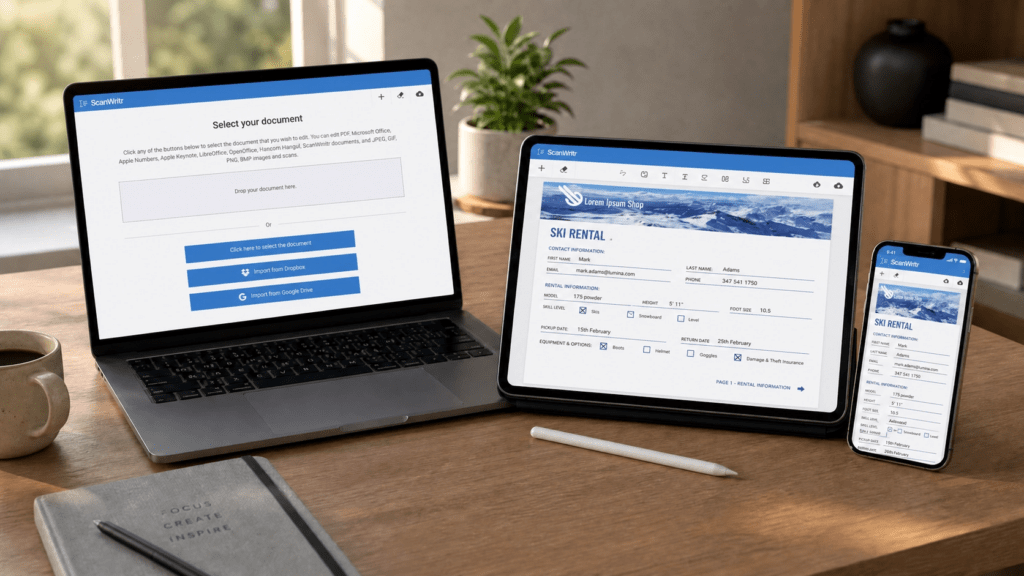
Zero Installation Required — Unlike heavy desktop applications, ScanWritr is entirely web-based. You can access it from any PC, Mac, smartphone, or tablet. So, this “anywhere, anytime” accessibility makes it ideal for remote work and urgent document processing.
Broad Format Support — ScanWritr supports a vast array of formats beyond just Word and PDF. You can import:
- Microsoft Office — Word, Excel, PowerPoint.
- Apple iWork — Pages, Numbers, Keynote.
- Open Source — LibreOffice, OpenOffice.
- Images — JPEG, PNG, HEIC, BMP.
Automatic Optimization — When you upload a document, ScanWritr’s advanced algorithms perform image enhancement and edge detection. This ensures that even if you are merging a high-quality PDF with a smartphone-captured photo of a printed page, the final result looks consistent and professional.
Step-by-step: How to merge Word and PDF into one file
Merging your documents with ScanWritr is a streamlined process designed for efficiency. So, follow these steps to create your consolidated file:
Step 1: Upload your primary document
Visit the ScanWritr Online Editor and upload your first file. This could be your main Word document or the primary PDF. ScanWritr will instantly convert and display it in the editor.
Step 2: Use the “Insert pages” tool to merge Word and PDF into one file
Once your first document is open, look for the Insert pages tool at the bottom of the workspace. This feature allows you to browse your computer to select additional files. So, you can add more Word documents, PDFs, or even images.
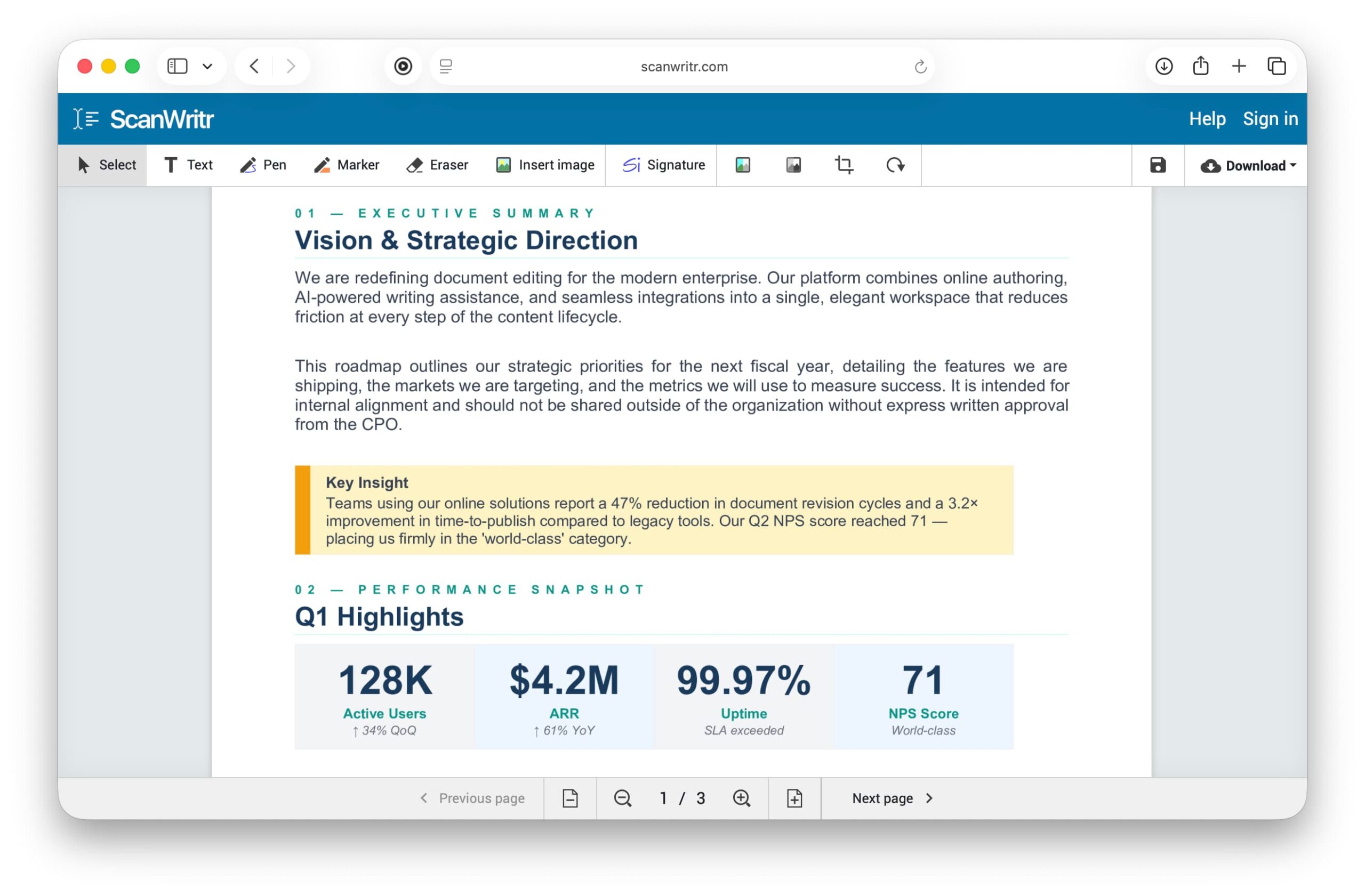
Step 3: Organize, retouch, and edit
After all files are imported, you can organize, retouch, enhance, and edit the pages:
- Delete extra pages — If you don’t need some imported pages, you can delete them using the Delete page tool at the bottom of the workspace.
- Erase — If your document contains sensitive data, use ScanWritr’s eraser tool to redact information before the final export.
- Enhance — The enhancement algorithms enable cropping and optimize contrast, brightness, and clarity.
- Add text and fill forms — Complete blanks and form fields using text and pen tools.
- Drawing tools — Use pen and marker tools for freehand annotations or if you need to highlight important areas of the document.
- Signatures — Sign documents by typing, freehand signing, or importing an image of your signature
Step 4: Export as a single PDF
Once you are satisfied with the layout and content, click the Download button. ScanWritr will compile all the different elements—Word pages, PDF pages, and images—into one high-quality, PDF file. If needed, you can also perform OCR.
Simplify your workflow today: Merge Word and PDF into one file
The ability to merge Word documents and PDFs into a single file shouldn’t require complex software or multiple conversion steps. ScanWritr provides a modern, efficient, and user-friendly solution that brings traditional paperwork into the digital age. By combining powerful editing tools with broad format support, it ensures that your consolidated documents are professional, organized, and ready for any purpose—be it emailing, printing, or faxing.
Ready to streamline your document management? Visit ScanWritr today and experience the ease of merging your files online.
Frequently Asked Questions (FAQ)
Can I merge Excel files with PDFs using ScanWritr?
Yes! ScanWritr supports Microsoft Excel, allowing you to combine spreadsheets with Word documents and PDFs into one final file.
Is there a limit to how many files I can merge?
ScanWritr is designed to handle multiple documents. For extremely large projects, the platform helps manage the processing power required for high-resolution outputs.
Do I need to create an account to use ScanWritr?
You can start editing and merging documents immediately. However, creating an account allows you to save your progress and export your documents.
Can I send the merged file as a fax?
Absolutely. ScanWritr integrates seamlessly with WiseFax, allowing you to import, edit, and fax your documents directly from the interface.